Install
The current beta is version 1.0.0 (build 1), updated October 23, 2026. Reclaim needs macOS 13 Ventura or later (Apple Silicon). It ships as a disk image with the app and the command line tool inside.
- Download the beta from the home page (or direct DMG download) and open the
.dmg. - Drag Reclaim into the Applications folder.
- Eject the disk image. You can delete the download afterwards.
First launch
Beta builds are not yet notarized by Apple, so macOS asks you to confirm the first time you open Reclaim.
- Open Reclaim from Applications. If macOS says it cannot verify the app, click Done.
- Go to System Settings, then Privacy & Security, scroll down, and click Open Anyway next to Reclaim.
- Confirm once more. From then on Reclaim opens normally.
Reclaim opens on Pulse. Click Scan now to take your first reading. Scans only read your disk, so this step never changes anything.
Full Disk Access
Optional. Reclaim cleans developer and user caches without it. Granting Full Disk Access also lets it inspect protected Safari and Mail data.
- On Pulse, click Open Settings in the Full Disk Access panel. You can also run
reclaim fda --open. - Turn on Reclaim in the list, then quit and reopen the app.
Pulse
Pulse is the home screen: where your disk stands, and what you can take back today. The Storage City diorama is drawn from your real scan, with districts sized by how much space each category uses.
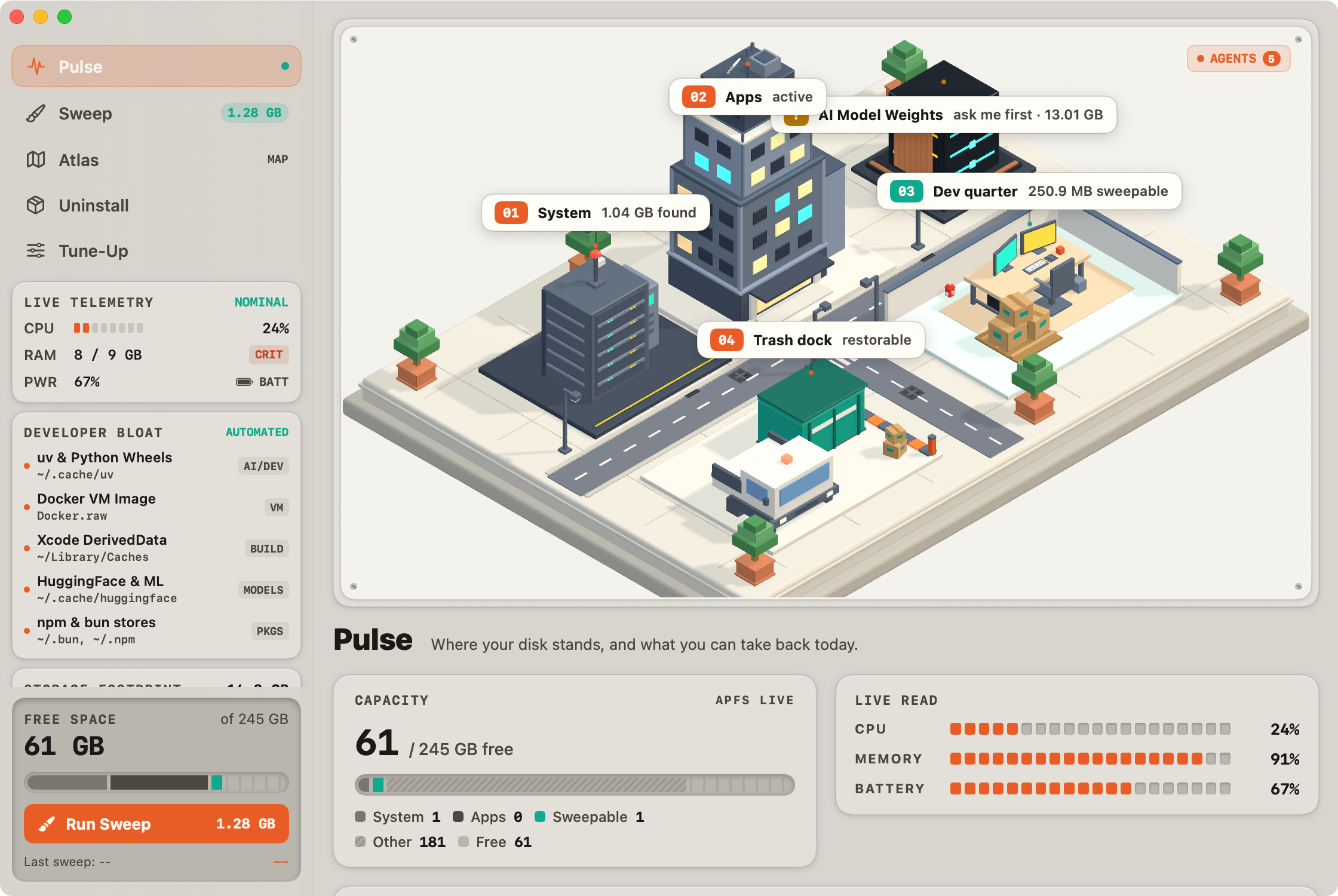
- Scan now / Scan again
- Reads your disk and refreshes every number on the screen.
- Storage City
- Drag the diorama to rotate it in 3D. Double-click it, or press Reset, to return to the default view.
- Agents
- Opens the robot crew. Click a robot to see what it looks after in its district.
- Safety & integrity
- Shows the Trash-first pipeline, the audit chain, Full Disk Access, and MCP server status at a glance.
- Capacity
- Free space against the size of your disk.
- Live read
- CPU, memory, and battery, updated live.
- Ready to sweep
- What the scan found, split into Safe to sweep and Ask me first.
- Run sweep
- Moves everything marked Safe to sweep to the Trash, then scans again. Ask me first items are never included.
Sweep
Sweep is the detailed view of your last scan: package caches, AI models, build artifacts, and system logs, each with its item count, risk tier, and size. Use the filter to show All, Safe to sweep, or Ask me first.
To clear Safe to sweep items, click Run sweep on Pulse or in the menu bar. Ask me first items are left for you to decide: delete them in Finder, or target one category from the CLI, for example reclaim clean --category AI_MODEL_WEIGHTS --execute.
Atlas
Atlas maps your disk so you can find what is heavy, not just what is junk. Click Survey now, then click any folder to drill in. The breadcrumb at the top takes you back out.
Atlas only shows sizes. It never deletes anything, so it is safe to explore anywhere, including folders Reclaim would never clean.
Uninstall
Remove apps completely, and find what they left behind.
- Installed
- Apps in /Applications and ~/Applications. Apple's system apps are marked System and cannot be removed.
- Orphans
- Preferences, caches, and support files from apps you already deleted, found across 12 Library locations.
Removing an app moves the app and its preferences, caches, and support files to the Trash, so Put Back works for all of them. Sweep all orphans clears the orphan list the same way.
Tune-Up
Login items, background agents, and quick speed fixes.
- Flush DNS cache
- Fixes sites that will not load after a network or DNS change.
- Reclaim purgeable space
- Asks APFS to release space macOS is holding for caches and snapshots.
- Reindex Spotlight
- Rebuilds the search index when Spotlight results look wrong or stale.
- Startup items
- Toggle LaunchAgents, LaunchDaemons, and login items off or on. Disabling never deletes them.
Settings
Open Settings from the Reclaim menu or with ⌘,.
- Appearance
- System, Light, or Dark. Light is the putty instrument panel, Dark its charcoal twin.
- Diorama style
- Neo-Tokyo Cyber-Port (the default city) or the Modular Freight Terminal, a container port with cranes and robot carriers.
- Automatic Scan on Launch
- Runs a read-only scan each time Reclaim opens. On by default.
- Thermal Governor Protection
- Pauses scans when the Mac runs critically hot, and slows them on battery, Low Power Mode, or heat.
- Reduced Motion for 3D Diorama
- Freezes the diorama's looping animations, even when macOS Reduce Motion is off.
- Menu Bar Companion
- Shows or hides Reclaim in the menu bar.
- Dev Targets
- Turn off any of nine scan groups, such as Docker VM images, Hugging Face models, or browser caches. Switched-off groups are skipped by scans and sweeps.
- Require Confirmation Before Sweep
- Run sweep first shows what it will move, by category, and asks before anything goes to the Trash.
- Exclusions
- Add folders Reclaim must never touch. They are skipped by scans, sweeps, and the orphan list.
- Safety & Audit
- Verify Audit Integrity re-checks every hash in the log. Reveal in Finder opens it, and recent sweeps are listed below.
Risk tiers
Every item a scan finds gets one of three tiers.
- Safe to sweep
- Rebuilds on its own with no data loss: package caches, DerivedData, logs. Included in Run sweep.
- Ask me first
- Costly to get back, like AI model weights, Xcode archives, or Docker.raw. Never included in Run sweep.
- Hands off
- System files, documents, code repositories, and credentials. Never staged for removal.
On top of the tiers, a sandbox check refuses any path under /System, /usr, ~/Documents, ~/Desktop, ~/Pictures, ~/.ssh, or your Keychains, even from a custom rule.
Restoring files
Reclaim moves files with the macOS Trash instead of deleting them. To get something back:
- Open the Trash from the Dock.
- Right-click the item and choose Put Back. It returns to its original folder.
Audit log
Sweeps and dry runs are appended to ~/.reclaim/audit.jsonl: what ran, how many items, how many bytes, and which paths. Each entry includes a SHA-256 hash chained to the entry before it, so an edited or deleted line breaks the chain.
To check the chain, open Settings, then Safety & Audit, and click Verify Audit Integrity. To read the newest entry yourself:
$ tail -n 1 ~/.reclaim/audit.jsonl
CLI
The reclaim command line tool lives inside the app bundle. Link it onto your PATH once:
$ sudo ln -s /Applications/Reclaim.app/Contents/MacOS/reclaim /usr/local/bin/reclaim
Every command accepts --json for machine-readable output on stdout. Logs go to stderr.
- reclaim scan
- Find developer bloat, AI model weights, and system junk. Read-only.
- reclaim clean
- Clean Safe to sweep categories. A dry run unless you add
--execute. - reclaim uninstaller
- List installed apps and orphaned files.
- reclaim uninstaller remove <app>
- Remove an app by name or bundle ID. Dry run unless
--execute. - reclaim spacelens
- Atlas in the terminal. Options:
--path <dir>,--depth <n>. - reclaim maintenance
- Run dns, purgeable, or spotlight. No argument runs DNS and purgeable.
- reclaim vitals
- CPU, memory, disk, and battery.
- reclaim rules
- List the cleanup rules Reclaim uses.
- reclaim fda
- Check Full Disk Access. Add
--opento jump to System Settings.
A typical session: look, preview, then commit.
# See what is reclaimable$ reclaim scan# Preview the cleanup (nothing moves)$ reclaim clean# Move Safe to sweep items to the Trash$ reclaim clean --execute# Limit to one category$ reclaim clean --category XCODE_ARTIFACTS --execute
Categories include DEVELOPER_CACHE, AI_MODEL_WEIGHTS, DOCKER_VM, XCODE_ARTIFACTS, STRAY_DEPENDENCIES, SYSTEM_CACHES, SYSTEM_LOGS, CRASH_REPORTS, and BROWSER_CACHES.
--permanent skips the Trash and deletes for good. It only runs together with --execute and --yes, and there is no Put Back afterwards.MCP server
reclaim mcp starts a Model Context Protocol server over stdio, so Claude, Cursor, Cline, or any MCP client can scan and clean for you with the same safety rules as the app.
Add this to your client's MCP config, for example ~/Library/Application Support/Claude/claude_desktop_config.json or .cursor/mcp.json:
{"mcpServers": {"reclaim": {"command": "/Applications/Reclaim.app/Contents/MacOS/reclaim","args": ["mcp"]}}}
If you linked the CLI onto your PATH, "command": "reclaim" works too. Restart the client after saving.
- scan_storage
- Scan for reclaimable space.
- clean_storage
- Move items to the Trash, or dry-run them.
- inspect_directory
- Size up a folder, like Atlas.
- list_apps / uninstall_app
- List and remove applications.
- get_system_vitals
- CPU, memory, disk, and battery.
- list_rules / register_rule
- Read or add cleanup rules. New rules still pass the sandbox check.
- inspect_anomalies
- Flag unknown folders that are growing fast.
Removing Reclaim
- Quit Reclaim from the menu bar icon, then drag it from Applications to the Trash.
- If you linked the CLI, remove the link:
sudo rm /usr/local/bin/reclaim. - To remove its settings and audit log too, delete
~/.reclaimand~/Library/Application Support/Reclaim.
Troubleshooting
- “Reclaim can't be opened”
- Use Open Anyway in System Settings, as described in First launch.
- A scan finds less than expected
- Some locations need Full Disk Access. Grant it, reopen Reclaim, and scan again.
- My disk did not get more free space
- Swept files are still in the Trash. Empty it when you are sure you do not need them.
- reclaim: command not found
- Link the CLI onto your PATH (see CLI), or call it by its full path inside the app.
- The MCP client shows no tools
- Check the command path in the config points at the reclaim binary, then fully restart the client.